.png?)
Should You Use Outlook to Send Confidential Data?
 Sabrina McClune


Outlook can be suitable for sending confidential data when Microsoft 365 is configured with the right message protection, account security and organisational policies.
The decision is not simply whether Outlook is safe. It is whether the protection applied to a particular message gives you the right recipient experience, access assurance, evidence and post-send control.
The short answer
Yes, Outlook can send confidential information securely, but the correct controls must be selected and configured. Microsoft 365 provides capable native options. Mailock can work alongside them when a business wants a dedicated secure-email journey for sensitive external customer communications.
This guide explains what Outlook and Microsoft 365 already provide, the checks to make before sending, and where Mailock may add value without replacing the wider Microsoft estate.
Contents
- Can Outlook Send Confidential Data Securely?
- A Practical Confidential Email Checklist
- Check the Recipient and Access Method
- Plan for Sending Errors
- Where Mailock Adds Value to Outlook
- Choose the Right Approach
Can Outlook Send Confidential Data Securely?
Microsoft 365 provides several different protection layers. Outlook is the email client, while Exchange Online, Microsoft Purview and Microsoft Entra provide transport, message, policy and account controls around it.
Transport Layer Security (TLS) helps protect connections between participating email systems. That is useful, but transport protection alone does not decide who can open a delivered message or what they can do with its contents.
Microsoft Purview Message Encryption adds message encryption plus identity, authorisation and rights-management controls. It can protect messages sent inside or outside the organisation, and administrators can apply protection automatically through mail-flow rules.
Microsoft also supports S/MIME and Purview encryption in Outlook. S/MIME uses certificates for encryption and digital signatures, while Purview can offer native Outlook access or an encrypted-message portal depending on the recipient and configuration.
These are capable options, not basic encryption. The practical question is which option matches the information, the recipient and the organisation's operating model.
For a deeper capability and workflow comparison, see Microsoft 365 secure email vs Mailock.
"Protecting confidential email is a layered job. Encryption matters, but organisations also need to decide who can access the message, what the sender can see and what can happen after sending."
Mike Wakefield, CTO, Beyond Encryption (Mailock)
A Practical Checklist for Sending Confidential Data
Use these checks before choosing how to send the message.
1. Classify the Information
Start with what the email contains. A routine update, a customer's financial document and a file containing health information do not need identical controls.
Assess the likely impact if the information reaches the wrong person, is accessed through a compromised inbox or remains available after it should have been withdrawn.
The Information Commissioner's Office explains that UK data protection law requires appropriate technical and organisational measures. It does not mandate encryption for every use of personal information, but identifies encryption as an important measure to consider according to the risk.
2. Choose the Message Protection
In a configured Microsoft 365 environment, a sender may be able to select Encrypt or Do Not Forward from the Options menu. Administrators can also use policies to apply encryption when defined conditions are met.
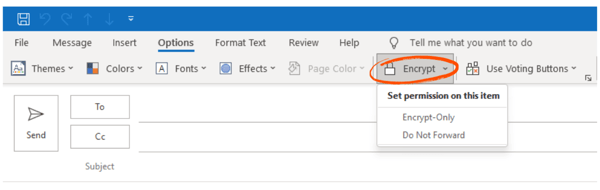
The location and available encryption options vary by Outlook client, licence and organisational configuration.
S/MIME may suit certificate-managed communications. Microsoft Purview Message Encryption may suit organisations that want Microsoft-native rights controls and external recipient access. A specialist secure-email service may be useful when the customer journey needs different authentication, tracking or delivery controls.
3. Protect the Microsoft 365 Account
Message encryption cannot compensate for a poorly protected account. Use unique credentials, restrict privileged access and follow the organisation's identity policy.
Microsoft recommends security defaults or Conditional Access for multifactor authentication rather than relying on legacy per-user MFA. The right configuration depends on the organisation's Microsoft Entra licensing and access model.
4. Check the Recipient and Access Method
Check the full address, domain and recipient list before sending. Outlook's autocomplete is convenient, but similar names and previously used addresses can still lead to mistakes.

An email address check and recipient authentication are different controls. Checking reduces input errors. Authentication adds a step before protected content can be accessed.
Microsoft's encrypted-message portal can use an eligible account sign-in or a configured one-time passcode. Mailock can apply a configured recipient check such as email verification, SMS, question and answer, or Unipass ID where available. The right method depends on the assurance required and what the organisation already knows about the recipient.
5. Use Policy to Support the Sender
Do not make every sensitive send depend on memory. Microsoft mail-flow and data-loss-prevention policies can identify defined conditions and apply protection or guide the user.
Mailock enterprise deployments can also use policy-led secure delivery and security alerts that prompt the sender when configured terms suggest a message should be protected.
Whichever route you choose, test the rules against real customer communications. Overly broad controls can create avoidable friction, while narrow rules can miss important messages.
6. Plan for Sending Errors
Know which post-send control applies before an error occurs. Ordinary Outlook recall, Microsoft encrypted-message revocation and Mailock Message Revoke are not interchangeable.
Microsoft's cloud-based Message Recall works for eligible messages inside the same Microsoft 365 organisation. Administrators can control whether already-read messages are recalled, and Microsoft's default cloud setting treats read-message recall as enabled.
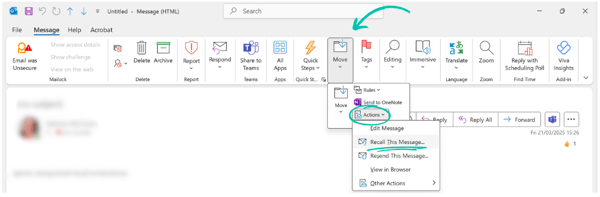
The classic Outlook dialog retains unread-copy wording, but Microsoft says this is no longer accurate for cloud recall when read-message recall is enabled.
Cloud recall does not retrieve ordinary messages sent over the internet or to another organisation. Microsoft Purview Advanced Message Encryption can revoke eligible external portal messages, subject to licensing, branding, configuration and recipient-experience conditions.
For the current eligibility rules and step-by-step instructions, see how to recall an email in Outlook.
Mailock Message Revoke can close future access to a protected Mailock message, including in an external customer journey. No recall or revoke control can recover information already retained outside the protected experience, such as a downloaded copy, photograph or screen capture.
7. Keep Evidence and a Response Process
Decide what senders, administrators and privacy teams need to see. Microsoft offers delivery trace, audit and encrypted-portal activity in different configurations. Mailock Message Tracker gives senders access activity within the secure-message workflow.
Evidence should support action. If confidential information is misdirected, check the relevant report or tracker, use recall or revoke where eligible, and follow the organisation's incident process.
Where Mailock Adds Value to Outlook
Microsoft can encrypt email. Mailock adds a purpose-built secure customer journey. It is designed for organisations that want sensitive external email to remain familiar for the sender while adding controls around recipient access and what happens after sending.
"Mailock keeps secure customer email close to the way people already work. The sender can protect the message in Outlook, choose an access check and retain control through the secure journey."
Adam Byford, COO, Beyond Encryption (Mailock)
The Mailock add-in is designed for supported classic Outlook for Windows environments. Senders can also use Mailock on the web, while enterprise and automated options support policy-led and system-generated communications.
- Protect sensitive messages and attachments in the sender's established workflow.
- Apply a configured recipient-authentication check appropriate to the customer and communication.
- Keep replies inside the protected exchange without requiring the recipient to buy a subscription.
- See access activity in Message Tracker to support follow-up and response.
- Close future access with Message Revoke if the message was misdirected or the information changes.
Explore how Mailock works with Outlook across supported individual and business workflows.
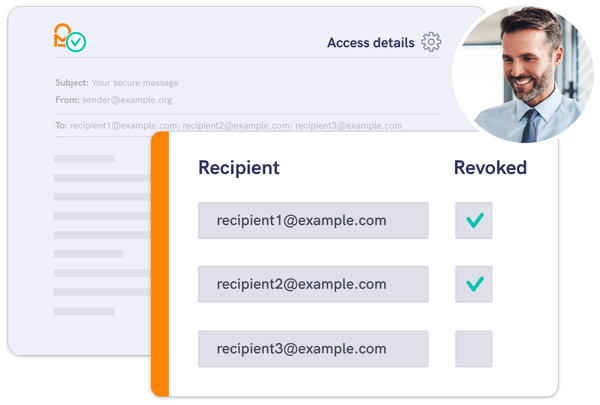
Mailock brings recipient access, activity and revocation controls into a dedicated secure-email journey.
These capabilities are most valuable when the organisation communicates with customers across many email providers and wants a consistent protected experience beyond the Microsoft tenant boundary.
Mailock does not need to replace Microsoft 365. It can sit alongside the Microsoft estate for the communications that benefit from its specialist workflow.
Choose the Right Approach for the Communication
Microsoft 365 alone may be appropriate when the organisation has the required licences and administration, recipients use suitable Microsoft or portal experiences, and the available access and evidence controls meet the need.
Mailock may add value alongside Microsoft 365 when external customer communications need sender-selected authentication, a consistent protected reply journey, sender-facing tracking or straightforward future-access control.
| Question | What to check |
|---|---|
| Who is receiving the message? | Colleague, known Microsoft user or external customer using another provider |
| What should happen before access? | Account sign-in, one-time passcode, certificate or a configured recipient check |
| What must the sender see? | Delivery, access, reply or administrative audit evidence |
| What if circumstances change? | The applicable recall, revocation and incident-response route |
Test the chosen route with real users and communications. The strongest option is the one that applies suitable protection without making the sender or recipient work around it.
FAQs
Is Outlook Safe for Sending Confidential Information?
It can be. Outlook can use Microsoft 365 message encryption, rights-management, account and policy controls. Suitability depends on the organisation's licence, configuration, recipient journey and information risk.
Does Outlook Encrypt Every Email?
Microsoft 365 uses transport encryption for email connections, but message-level protection such as Purview encryption or S/MIME must be available and applied through user action or organisational policy.
Is Microsoft Purview Message Encryption Enough?
It may be. Purview provides capable protection for internal and external messages. Check whether its recipient access, rights, reporting, revocation and administration model meet the communication's requirements.
Can Outlook Recall Confidential Email Sent Externally?
No. Cloud-based Message Recall applies to eligible messages inside the same Microsoft 365 organisation. Eligible Advanced Message Encryption portal messages may have a separate external revocation option.
How Does Mailock Work with Outlook?
The Mailock add-in supports secure sending from compatible classic Outlook for Windows environments. Mailock adds configured recipient authentication, secure replies, Message Tracker and Message Revoke within its protected-message journey.
Does Mailock Replace Microsoft 365?
No. Mailock can work alongside Microsoft 365 for selected sensitive external communications while Microsoft continues to provide the mailbox, identity, transport and wider information-protection estate.
References
Microsoft Purview Message Encryption, Microsoft Learn, 2025
Manage Purview Message Encryption, Microsoft Learn, 2026
Send S/MIME or Microsoft Purview encrypted emails in Outlook, Microsoft Support
Encryption and data protection, Information Commissioner's Office, 2025
Set up multifactor authentication for Microsoft 365, Microsoft Learn, 2025
Work with Cloud-based Message Recall, Microsoft Learn, 2025
Revoke email encrypted by Advanced Message Encryption, Microsoft Learn, 2026
Reviewed by
Sam Kendall, 16.07.26
This content is for general information only and is not legal advice. Product features, licensing and service descriptions can change.
|
Originally posted on 06 10 21
Sabrina McClune writes about cybersecurity, data protection, digital identity, and digital transformation for Beyond Encryption, helping regulated sectors understand complex technology and compliance topics with greater clarity. |
Email Series
Subscribe to
.svg)
Subscribe to Privacy Decoded, our monthly email briefing about privacy, digital trust, and the forces shaping our online world.
 Previous post